


Tag: Disable Apple CarPlay

  • How to Turn Off CarPlay on Your iPhone or Vehicle

    How to Turn Off CarPlay on Your iPhone or Vehicle

    Step-by-step methods for disconnecting one trip, forgetting a car, disabling CarPlay everywhere, and stopping automatic reconnection

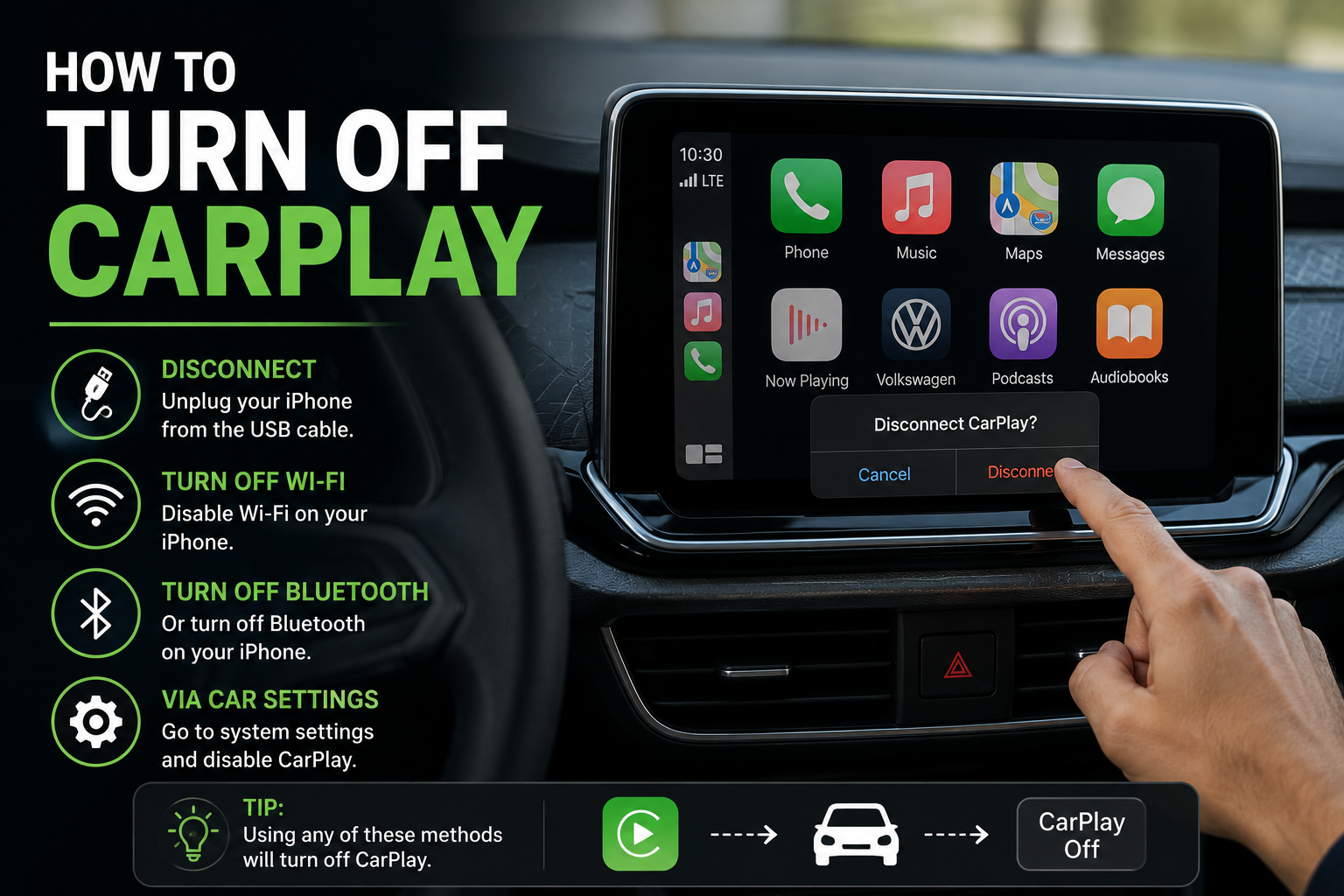
    Learning how to turn off CarPlay is straightforward once you decide whether you want a temporary disconnect or a complete block. You can unplug a wired connection, disconnect the phone through the vehicle’s projection menu, forget one vehicle in iPhone settings, or use Screen Time to prevent CarPlay from working with any car.

    The correct method depends on your goal. Forgetting one car does not disable CarPlay in other vehicles. Turning CarPlay off through Screen Time blocks the feature more broadly. Vehicle menus also vary, so the option may be labeled Apple CarPlay, Phone Projection, Smartphone Integration, Device Manager, or Connected Devices.

    Key Takeaways

    For one wired trip, unplug the iPhone or switch the vehicle to another audio or navigation source.

    To remove one saved vehicle, open Settings > General > CarPlay, select the car, and tap Forget This Car.

    To disable CarPlay on every vehicle, use Settings > Screen Time > Content & Privacy Restrictions > Allowed Apps & Features, then turn CarPlay off.

    Wireless CarPlay may also need to be removed from the vehicle’s connected-device menu if it reconnects automatically.

    Before returning a rental car, forget the vehicle on the iPhone and delete the iPhone from the car’s infotainment system.

    Which CarPlay Turn-Off Method Should You Use?

    Your Goal Best Method What Happens
    Stop CarPlay for one wired trip Unplug the cable or use a non-CarPlay USB port The phone stops projecting to the vehicle
    Disconnect wireless CarPlay temporarily Use the vehicle’s phone or projection menu The current session ends without deleting every setting
    Stop one car from reconnecting Forget This Car on the iPhone and remove the phone from the vehicle The pairing must be set up again later
    Disable CarPlay in every car Turn off CarPlay in Screen Time restrictions CarPlay cannot launch until the restriction is reversed

    How Do You Turn Off Wired CarPlay Temporarily?

    For a wired connection, the fastest method is to unplug the iPhone from the CarPlay USB port. The vehicle should return to its built-in interface or another selected source. If you still want to charge the phone, look for a charge-only USB port, use a 12-volt adapter, or use wireless charging if the vehicle supports it.

    Some vehicles have multiple USB ports, but only one supports CarPlay. A port marked with a smartphone or CarPlay symbol usually starts phone projection. Another port may provide power without launching CarPlay. Check the owner’s manual because port functions differ by make, model, trim, and model year.

    You can also keep the cable connected and select the vehicle’s native home screen, radio, or navigation source. This may hide CarPlay without ending the connection. If the car automatically returns to CarPlay, use the vehicle’s device settings to disconnect the phone or disable automatic phone projection.

    How Do You Forget One Car on an iPhone?

    Forgetting a vehicle is the cleanest option when you want CarPlay to stop connecting to one specific car but continue working in other vehicles.

    1. Open the Settings app on the iPhone.
    2. Tap General.
    3. Tap CarPlay.
    4. Select the vehicle you want to remove.
    5. Tap Forget This Car.
    6. Confirm the removal.

    The next time you want to use CarPlay with that vehicle, you will need to connect and approve it again. With a wired system, that may happen when you plug into the CarPlay USB port. With a wireless system, you may need to hold the voice-command button and repeat the vehicle’s pairing process.

    Apple’s CarPlay troubleshooting guide also recommends Settings > General > CarPlay > your car > Forget This Car when a saved connection is not working correctly.

    How Do You Disable CarPlay on Every Vehicle?

    Use Screen Time restrictions when you do not want the iPhone to activate CarPlay in any compatible vehicle. This can be useful for a family device, a teen driver, a work phone, or anyone who prefers the vehicle’s built-in interface.

    1. Open Settings.
    2. Tap Screen Time.
    3. Tap Content & Privacy Restrictions.
    4. Turn on Content & Privacy Restrictions if it is currently off.
    5. Tap Allowed Apps & Features.
    6. Find CarPlay and turn it off.

    On some older iOS versions, the menu may be labeled Allowed Apps instead of Allowed Apps & Features. When CarPlay is disabled in this menu, the iPhone should not launch CarPlay until you return to the same setting and turn it back on.

    A Screen Time passcode can prevent someone else from changing the restriction. Store that passcode securely. Losing it can make later changes inconvenient, especially on a child’s managed device.

    How Do You Stop Wireless CarPlay From Connecting Automatically?

    Wireless CarPlay uses a combination of Bluetooth for discovery and Wi-Fi for the active connection. Turning off only one radio may not be the most reliable long-term solution, and it also affects other accessories and networks.

    Start with the vehicle’s infotainment settings. Open the phone, projection, or connected-device menu, select the iPhone, and look for Disconnect, Disable CarPlay, Use as Bluetooth Device, Auto Connect, or Delete Device. The wording varies widely.

    If the phone keeps reconnecting, remove the relationship from both sides. On the iPhone, use Forget This Car. In the vehicle, delete the iPhone from the paired-device list. Restart both devices before pairing again only if you later decide to restore CarPlay.

    Apple explains that wireless setup relies on Wi-Fi, Bluetooth, and the saved vehicle entry in its current iPhone CarPlay connection instructions. That is why deleting only a Bluetooth entry may not fully remove every CarPlay setting.

    Can You Use Bluetooth Audio Without CarPlay?

    In many vehicles, yes. Pair the iPhone through the car’s normal Bluetooth menu, select Bluetooth Audio as the source, and avoid connecting to the CarPlay USB port or wireless projection profile. This can preserve music streaming and hands-free calling while using the vehicle’s native screen.

    Some systems combine Bluetooth pairing and wireless CarPlay into one setup process. If the vehicle immediately enables CarPlay again, open its device settings and change the iPhone’s role from CarPlay or Phone Projection to Bluetooth Audio. Not every infotainment system offers this separation.

    How Do You Turn Off CarPlay in a Rental Car?

    Rental vehicles deserve extra attention because saved contacts, recent destinations, messages, and device names may remain visible in the infotainment system after the trip. CarPlay is designed to keep most personal data on the iPhone, but it is still wise to remove the pairing.

    • On the iPhone, go to Settings > General > CarPlay and forget the rental vehicle.
    • Open the rental car’s connected-device or phone menu and delete your iPhone.
    • Clear recent destinations or navigation history stored in the vehicle’s native system.
    • Remove any Bluetooth pairing that remains.
    • Check the center console and USB ports before returning the vehicle.

    Why Does CarPlay Keep Turning Back On?

    Possible Cause What to Try
    The car remembers the iPhone Delete the phone from the vehicle’s device list
    The iPhone remembers the car Use Settings > General > CarPlay > Forget This Car
    Automatic projection is enabled Turn off Auto Connect or Automatic CarPlay in the vehicle menu
    A CarPlay USB port is being used Move the cable to a charge-only port or a 12-volt charger
    Screen Time restriction was reversed Check Allowed Apps & Features and confirm CarPlay is off
    Infotainment software is behaving incorrectly Restart the iPhone and car, then check for iOS and vehicle firmware updates

    What Should You Do If CarPlay Will Not Disconnect?

    Begin with the least disruptive steps. Switch the vehicle to its native home screen, disconnect the phone through the device menu, or unplug the cable. If that fails, turn the vehicle off completely, open and close the driver’s door if required to shut down the infotainment system, and restart the iPhone.

    For a persistent wireless connection, forget the car on the iPhone and delete the phone from the vehicle. Update the iPhone to the latest compatible iOS version and check the vehicle manufacturer’s instructions for infotainment updates. Avoid resetting all iPhone network settings unless simpler steps fail because that also removes saved Wi-Fi networks and other connection information.

    Does Turning Off Siri Disable CarPlay?

    CarPlay requires Siri for setup and many voice functions, so disabling Siri may stop CarPlay from working correctly. However, turning off Siri is not the best way to manage CarPlay because it affects voice features throughout the iPhone. Forget the car or use Screen Time restrictions instead.

    Can You Hide CarPlay Without Fully Disabling It?

    Yes. Select the vehicle’s native interface, radio, climate, or navigation screen while keeping CarPlay connected in the background. This is useful when you still want phone calls or audio but need access to built-in vehicle controls.

    Some vehicles also let you choose whether CarPlay opens automatically at startup. Look for a setting such as Start CarPlay Automatically, Launch Phone Projection, or Remember Last Screen. The vehicle owner’s manual is the best source for model-specific wording.

    Frequently Asked Questions

    What is the fastest way to turn off CarPlay?

    For wired CarPlay, unplug the cable. For wireless CarPlay, disconnect the iPhone through the vehicle’s connected-device or phone-projection menu.

    Does Forget This Car disable CarPlay everywhere?

    No. It removes only the selected vehicle. CarPlay can still work in other saved or newly connected cars.

    Can I permanently disable CarPlay on my iPhone?

    You can block it through Screen Time by turning CarPlay off under Content & Privacy Restrictions and Allowed Apps & Features. The setting can be reversed later.

    Why does CarPlay start every time I charge my phone?

    You may be using the vehicle’s CarPlay-enabled USB port. Try a charge-only port, wireless charger, or 12-volt charging adapter.

    Will deleting Bluetooth stop wireless CarPlay?

    Not always. Wireless CarPlay also uses Wi-Fi and a saved CarPlay vehicle profile. Remove the connection from Settings > General > CarPlay and from the vehicle.

    Can I use the car’s navigation while CarPlay is connected?

    Usually yes. Press the vehicle’s native Home, Menu, Navigation, or infotainment button. Exact behavior depends on the vehicle.

    Should I remove CarPlay after using a rental car?

    Yes. Forget the vehicle on the iPhone and delete the phone from the rental car’s device list before returning it.

    The Bottom Line

    The best way to turn off CarPlay depends on how long you want it disabled. Unplugging or disconnecting through the vehicle works for one trip. Forget This Car prevents one vehicle from reconnecting. Screen Time restrictions block CarPlay across compatible vehicles.

    For wireless systems and rental cars, remove the connection from both the iPhone and the vehicle. This prevents automatic reconnection and reduces the chance that personal device information remains stored in the infotainment system.